Wednesday, 23 January 2013

Funny Facebook Trick


If you really want to impress someone with your hacking skills then this trick will surely help you.Well this is actually not any hacking just a simple javacript trick but the other person will surely believe you as a hacker.

NOTE: This trick has been patched in the latest versions of browsers.

You can do this trick in older versions of browsers. As firefox is easier to install,use firefox 3.5 or 4.0.

So what can you do with this trick?

You can edit content of any website including facebook,myspace,twitter etc.For instance see the pic below


How to perform this trick?
Open any website of your choice (like facebook) in  browser (internet explorer,google chrome,firefox) and clear the address bar of the browser.
Copy paste the following javascript code in the address bar of your browser
javascript:document.body.contentEditable='true'; document.designMode='on'; void 0
And thats it. Now Click on any text and Start editing that is written on that pageYou Can take its Snapshot after editing and show that to your friends and became Hacker in front of them ;).

How this trick actually work?
This is a javascript code on the the browser side.It is temporary and the changes will be gone once you refresh the webpage.
The javascript code JavaScript:document.body.contentEditable=’true’; makes the website editable in your browser.
The code document.designMode=’on’ tells the browser to turn the designmode on
The code void 0 tells the browser not to show any error
So, enjoy this funny trick to hack facebook.


Some Window 7 Cheats

Some Window 7 Cheats :

As you all know Windows 7 RC3 is launched. 
Here‘s a little cheat sheet I made up for some of the handy new hot key combination, many of which I‘ve become quite dependent on!

From Desktop -:

1. Windows Key + Tab : Aero
2. Windows Key + E : Windows Explorer is launched.
3. Windows Key + R : Run Command is launched.
4. Windows Key + F : Search
5. Windows Key + X : Mobility Center
6. Windows Key + L : Lock Computer
7. Windows Key + U : Launches Ease of Access
8. Windows Key + P : Projector
9. Windows Key + T : Cycle Super Taskbar Items
10. Windows Key + S : OneNote Screen Clipping Tool
11. Windows Key + M : Minimize All Windows
12. Windows Key + D : Show/Hide Desktop
13. Windows Key + Up : Maximize Current Window
14. Windows Key + Down : Restore Down / Minimize
15. Windows Key + Left : Tile Current Window to the Left
16. Windows Key + Right : Tile Current Windows Right
17. Windows Key + # (# is any number)
18. Windows Key + = : Launches the Magnifier
19. Windows Key + Plus : Zoom in
20. Windows Key + Minus : Zooms out
21. Windows Key + Space : Peek at the desktop

From Windows Explorer :

22. Alt + Up: Go up one level
23. Alt + Left/ Right: Back/ Forward 24. Alt + P: Show/hide Preview Pane
Taskbar modifiers
25. Shift + Click on icon: Open a new instance
26. Middle click on icon: Open a new instance
27. Ctrl + Shift + Click on icon: Open a new instance with Admin privileges
28. Shift + Right-click on icon: Show window menu
29. Shift + Right-click on grouped icon: Menu with Restore All / Minimize All / Close All, etc.
30. Ctrl + Click on grouped icon: Cycle between the windows (or tabs) in the group ! 

How To Set Video As Wallpaper

How To Set Video As Wallpaper -:

We often set wallpapers as our background wallpaper, but 


have you ever though to place any video file as background.

 Seemed crazy hmm..? I know your answer is yes. But now I

 will show you how to set movies and videos as background 

of your desktop. 

Step 1:- Go to start and from accessories click on Paint 


Step 2:- Now Run any movie and in full screen press print 


screen key to capture the screen. Here I am a Watching 

Movie 


Step 3:-Save it as movie.PNG. Do not close the player where 

is movie is playing.


Step 4:- Now click on the saved picture, right click and select 


set as background. 


Step 5:- And you will see movie playing 

as background like wallpaper.


Rename Start Button Text

Did you know, you can rename your WindowsXP Start button text to something else?Like this .Some of you may already know that you can do that by editing Explorer.exe file and change some value in your registry setting. But here comes an easy way to do that as editing windows registry is a hectic process.


StartBtn Renamer is a simple utility that you can use to change your WindowsXP Start button text. With this Delphi coded tool, all you have to do is just type in the word that you want to use and click on Rename It!button 

Use of Startbtn Renamer is BETTER than Editing Registry because on using this Utility you:

Need NOT to Restart your System.
Need NOT to Go through the Hectic Process of Editing Registries.


NOTE: Start Button can be renamed by Start Bttn Renamer & Editing of Registries only when your Windows Theme is set to its Default Theme i.e. NOT any Theme Set by the Computer User.

Convert Mobile Phone into Wi Fi Hotspot


Need Internet Connection on your Wifi Devices(Laptops, ipads etc etc) without any Broadband or Dsl connection? Then this article is just for you. 

Ya guys you can make your mobile phone work as Wifi modem for many devices to connect to it at the same instant.
This a very impressive trick. You can amaze your friends with this cool trick and also you can allow them to connect to your Wifi Hotspot. 


To make your Mobile phone a Wifi hotspot you need:

A Wifi Enabled Mobile Phone to use as Hotspot.

Atleast one Wifi Enabled Device to browse internet on it.

Joikuspot Software on your Mobile phone.

Joikuspot is available for free. Although it has premium version but free version is sufficient for a normal user. But if you wanna buy then here's the features of full version.
Full License - Full Feature Set
Now also for new Nokia phones like N8, C7 and E7

Connect your laptop or iPad to the Internet using your mobile phone as a 3G WiFi Router. JoikuSpot turns your phone into a WiFi HotSpot(Also in Free version).
Enjoy new easy 1-click WiFi Tethering user interface(Also in Free version).
Have complete freedom of naming your HotSpot, full connection security and full feature set with all internet protocols supported.
Read more
$ 20.38 $ 12.23

INR 1.249.38 INR 591.81


How to Use Joikuspot?

Simply install this file in your cell phone and then Run it. Then it will act as Wifi Modem and you can check for a Wifi Connection in your Other Wifi Device for this Wifi connection. It's name is Joikuspot_somecode(We can't change its name in Free Version) and in my pc it shows like this:


Connect and Enjoy!!


Note:
This application will ONLY work in the following Handsets:

N8, E7, C6-01, C7, E51, E52, E55, E60, E61, E61i, E63, E65, E66, E71, E72, E73, E75, E90, N78, N79, N80, N81, N81 8GB, N82, N85, N86, N91, N93, N93i, N95, N95 8GB, N95 Americas, N95 8GB Americas, N96, N97, N97 Mini, 5530 XpressMusic, 5630 XpressMusic, 5730 XpressMusic, 5800 XpressMusic, C5-03, C6, E5, X5, X6, 6710 Navigator, 8800 Erdos, E6, X7, 702T, T7, Oro, Nokia 500, Nokia 600, Nokia 700, Nokia 701, Nokia 603.

Convert Your Mobile into Wireless Webcam


Convert Your Mobile into Wireless Webcam:)


NOTE:There's a Trick at the end of this article. Do read that after reading all this. You will Surely feel good after reading that. ;)

Tired of carrying your bulky USB webcam and USB cables??.. Then just throw out your USB webcam with its cables and use your mobile phone as bluetooth based web camera. Its true and is very easy to install.The software required is Mobiola Web Camera 3.0.Go to this site and click on the 'Download' under the Mobiola Web Camera. Then select your device type and the downloading will start. 


It has two components:
1) A client application that resides on the phone.

2) A webcam PC driver compatible with any Windows application that can receive video feeds from a web camera.

Note:This App is 100% Working on Nokia 5530 Xpress music. This Phone is of Symbian s60 Category.

And Other Phones like 
iPhoneBlackBerryWindows Mobile
Pocket PC
Windows Mobile
Smartphones
Symbian S60


How to Install it on Your PC?

Its installation is quite simple.Be sure to switch ON the bluetooth of your laptop/PC while installing. 

How to Install on Your Phone?(For Symbian S60 Phones)

There is a file which has Extension '.sis'. Copy this file to your Mobile Phone and install it. 

After Installation on Your Phone & PC
After Installing it in your phone, start this app in Phone and PC and connect them.

Connecting Both Devices{Main Step}
This Step Seems to be tough but is not so.Just follow the instructions provided step by step:
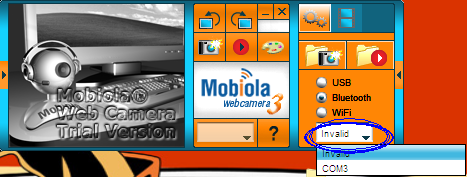
1.Click on the Bluetooth option given there in PC's Mobiola


2.Then select the right communication port there.


If you don't know about the right com port then you can select one by one all ports.Just wait for 2 Seconds after choosing each port and in that waiting period keep your eye at your Phone's display. Unknowingly, when you will select the right Com Port, then your phone will automatically connect with PC Quickly.Webcam will now start automatically.
Not only your Phone will Work as Webcam, you can also see your Phone's Display on your PC & can also take Snapshots:)
Now your webcam is always with you wherever you go. Just connect it with your laptop and enjoy:)


Promised Trick ;)

Guys this Mobiola Software is a Trial Version. Don't feel sad after reading the previous line because here's its solution. It's a 7 day trial(or may be 14). Just write the date of its installation in a notepad & give it a name of your choice(i named "Software Date") and keep it at a handy place. When you need to use this Software, then just change your Pc's date to that date(or a date which is within 7 days after the installation date of Mobiola) and log off(or restart,your wish) and it will work fine after that:)
Have Fun!!


Tuesday, 22 January 2013

Use USB, SD Card as RAM & Speed UP PC

Hello Guys, This is one of my favorite Trick to boost up the speed of your PC. After reading this post you can use your USB Flash Drive or SD card to get ultimate speed of your PC.


We will make your USB or SD card to act as RAM and it will increase space for Cache memory. 


Cache memory is a small memory inbetween CPU and Main memory which stores that files which are frequently used by a user.

Windows 7 users get Readyboost software by default in their windows. But Windows XP users need to install Ebooster and its too easy. Now just follow me up:

Note: Same Procedure is for SD Card.

Windows 7 Users:

1>> Insert your Flash Drive into USB.

2>> Select the option "Speed Up My System" in the Autoplay Box.

If Autoplay option doesn't open then goto My Computer-> Right Click on your Flash Drive-> Properties->Choose Readyboost Tab.

3>> Now you can choose between two options:

Dedicate this device to Ready boost: This will use entire memory of Flash drive as RAM.


Use this Device: Using this you can Reserve space for storing data in USB and the space left will be used as RAM.


4>> Click OK after choosing your choice.

Your USB is Converted to RAM :))

To UNDONE (goto My Computer-> Right Click on your Flash Drive-> Properties->Choose Readyboost Tab) & Select "Do not use this Device" in the above step and Click OK.


Windows XP:

1>> Install Ebooster and Register for Trial Version.

2>> Start Ebooster and Detect your USB device and select the options as in the image below:

Set how much memory you wanna allocate to USB.

5>> Click OK.

6>> Now a window will pop and select "Start Build Cache".

Now see the Magic of Ebooster :))

To UNDONE this firstly select Stop build Cache and then Remove.


Enjoy the Ultimate Speed Of PC :))


How to Create a Password Protected Folder Without Software and How to Hack it!


How to Create a Password Protected Folder Without Software and How to Hack it!


Securing Confidential Data is a basic requirement of everyone. This can also be done through available Softwares on Internet. Now i will share a method to Lock folders Without using any Software. This Trick will work in windows XP, Vista and Windows 7.

Why to Use this Method?
If you are afraid of getting Viruses through Softwares(This Technique is completely Safe).
If you are using PC of someone else and want to do some prank and not having enough time to download and install Softwares.
If for some reason you are not able to Install Softwares on PC.
How to do it?

Open Notepad

Copy the Code below and Paste it into Notepad.


http://paste2.org/p/2789141
Password for the above batch file is set to mixworld. You can change it to anything by editing mixworld to your choice in following line:

if NOT %pass%==mixworld goto FAIL

Now Save this file with a name anyname.bat(here .bat is the extension). I am choosing mixworld.bat as my file name in this tutorial.


Now a Bat file is created.


Now double click on bat file and it will ask you for password and Enter Password(for the above code it is mixworld).


Now you will see a folder named LOCKER in the same location where you saved anyname.bat(mixworld.bat here) file.


Open it and fill it with the data you wanna hide.


When you are done with the above press Y in the bat file and hit Enter.


Now Close this Bat file window and locker folder will hide itself.

Again to Edit Locker Folder double click mixworld.bat file and enter password.
You can do it as many times as you want. :)

How to Hack it if you Forget the Password?

Note:This is only for legal purposes. I don't take any responsibility if you hacked someone's Data and get caught. So don't do it for Illegal Purposes.


For this you need to open bat file with Notepad Again BUT You CANNOT open it directly in Notepad by Right clicking it and open it with  notepad.

You need to Add Notepad option in the sendto option which comes when you right click on a file to send it to directly in Pendrive or My documents or any other. To do this Read my article How to ADD a Folder into Sendto Option(Right Click).


Now Right click on mixworld.bat and Go to Sendto option and then choose Notepad.

 The Code which we used to Create it will come and the

if NOT %pass%==mixworld goto FAIL

password will be the content bold above(here mixworld).
Now you know the password thus you successfully Hacked into the Password Protected Folder.


Add favorite Folder to Send To option(Right click)


If you often send items to some specific folder in your PC then this article is made for you. You need not to copy the item and then paste everytime you need to send it. Here's a shortcut for you. Why not to add that folder to the "Sendto" option which comes when you right click on it. Now i will tell you how to do it.

For this you need to open Sendto folder. For searching it you must unhide the hidden files/folders. It can be done as follows:
1>>Go to Folder options in Control Panel.
2>>Then Go to View option.
3>>Then select Show hidden files,folders and drives(under Hidden files and folders).
Then hit apply and ok.

Search Sendto folder in:

= >Windows 7 & Vista:
Open C drive and follow:

Users\yourusername \AppData\Roaming\Microsoft\Windows\SendTo

Now just copy the folder which you wanna add and paste its SHORTCUT into it and that's it!

If you wanna delete then simply delete it from here.

= >Windows ME,2000,Xp:

To Locate:

1>>Click Start-->Run.

2>>Type "sendto"(Without Quotes).

3>>Hit Enter.

Now just copy the folder which you wanna add and paste its SHORTCUT into it and that's it!

If you wanna delete then simply delete it from here.

=> Windows 95 & 98:

Just Unhide hidden files and locate it in:

C:\Windows\SendTo

Now just copy the folder which you wanna add and paste its SHORTCUT into it and that's it!

If you wanna delete then simply delete it from here.


How to Get Email ids of your all Facebook friends

How to Get Email ids of your all Facebook friends using 

yahoo id...... If you want to know email id of your fb friends 

which is hidden in their profile.... So how do you get the 

email...

Here is the trick... Just Follow the Steps :

(If u already have an Yahoo id start from Step 2)

1. If your Facebook


account is not connected with Yahoo id then first Create an

email id in yahoo and connect your Facebook account with

 your Yahoo.


2. Now go to the contacts tab (in ur yahoo id.)


3. Click on Import contacts, and choose Facebook...


4. In Pop Up You will be asked to confirm whether you want 


to share contacts.. Allow sharing..


5. Wait for sometime, and voila, the contacts are connected 


with each other...


6. Thats it ! Click


on View imported contacts and you can see your friends 

Email..


If u want to find it in Gmail, do the same, although, not all 


the steps are the same, but they are almost similar...

Sunday, 20 January 2013

God Mode in Windows 7

Windows 7 users are all abuzz about the OS and its 

GodMode. If you haven't heard of it, GodMode is a feature 

that was revealed by CNet's Microsoft Correspondent

GodMode is a folder that brings together a long list of 

customization settings allowing you to change all your 

settings from one place. Neat huh? It's very easy to enable 

and damn useful if you tweak things around a lot.I've broken it down into five-step process to avoid confusion:


Step 1: Go To Desktop And Right click.

Step 2: Click create folder.  Rename It As "GodMode.

{ED7BA470-8E54-465E-825C-99712043E01C}" and press 


enter. (Note Without Quotes "")


Step 4: Blink as the folder changes form to look like the 


control panel.

Step 5: Open the folder and bask in all your godly, control 

panel-y power.


Enjoy God Mode In Windows 7 !


Friday, 11 January 2013

Trick to Show ur name after time in taskbar...

Hi freinds !


I m here to tell u a trick to add up ur name in 

place of AM and PM beside time and make 

urself to feel proud among ur group of 

frnds.Its simple

Start -> Control Pannel ->Clock, Language, 

and Region -> Regional and LAnguage option

 -> Additional settings -> Go to TIME tab -> 

Change AM symbol and PM symbol from AM 

and PM to ur name -> Apply -> Ok ...


IS it changed ??? Might be not ...Now go to 

time in taskbar and Double Click it to open 

"Date and time property" 

..Look place where time changes in digital 

form i.e. 02:47:52 AM , click to arrow to 

change the AM or PM by selecting and press 

arrow. It will Show ur name or name that was

 entered by u,


. Apply -> OK and be HAPPY 

Wednesday, 9 January 2013

Use the Notepad as your personal diary


Use the Notepad as your personal diary

There is a simple feature in Notepad that can make it work like a personal diary for you.Here is how to go about it:


1.Firstly open a blank Notepad file.


2. Now write .LOG as the first line in the file, then press enter. Now save the file and close it.


3.Open the notepad file now and you will find that the current date and time has been
appended (put) at the end and the cursor is in the next line.


4. Type your notes and then save and close the file.


5. Each time you open the file, Notepad repeats the process,that is it appends the date and time to the end of the file and places the cursor below it.


ENJOY PC TRICKS